

The wrong cutting machine can turn a cute printable party favor into a late-night reprint session. For Cricut vs Silhouette for party printables, I usually recommend Cricut for parents who want a simpler setup and Silhouette for crafters who want deeper design control. At Hangingwiththekiddos, we focus on printable party supplies that look polished at home, so the real question isn't only which machine is "best." It's which one fits your favors, paper, software comfort, and deadline.
Party printables: printable decorations, labels, stickers, wrappers, toppers, favor boxes, and signs that you print at home or through a print shop, then trim, cut, fold, or assemble.
Table of Contents
What is the best choice for party printables?
Cricut is the best choice for beginners making party printables quickly, while Silhouette is better for makers who want more control over layouts, cut settings, and detailed printable designs. If your projects are mostly stickers, labels, cupcake toppers, and simple favor tags, Cricut feels easier. If you sell printables or customize heavily, Silhouette often feels more flexible.
Competitor comparisons often focus on general crafting, like vinyl, wood, and fabric. Party printables need a narrower lens: print quality, registration marks, small-detail cutting, software layout control, and paper handling matter more than engraving or heavy materials.
Quick verdict: Choose Cricut if you want guided cutting and a shorter learning curve. Choose Silhouette if you want stronger layout control for printable sheets and small business workflows.
Verdict table for Cricut vs Silhouette
| Need | Better pick | Why it matters for party printables |
|---|---|---|
| Fast beginner setup | Cricut | Design Space is simpler for basic print-then-cut projects |
| Advanced printable layouts | Silhouette | Silhouette Studio gives more control over design placement |
| Stickers and labels | Tie | Both work well when files, paper, and calibration are correct |
| Favor boxes | Silhouette | More layout flexibility helps with score lines and tabs |
| Classroom parties | Cricut | Easier for quick batches of tags, toppers, and labels |
| Small business printables | Silhouette | Better for repeat layouts, custom shapes, and workflow control |
| Canva users | Cricut | Importing finished PNG or SVG files is beginner-friendly |
For materials, your machine is only half the result. A glossy chip bag printed on thin copy paper won't look professional, even with a perfect cut. For chip bags, candy wrappers, and glossy party favors, Party & Confetti® Glossy Chip Bag Paper gives a smoother finish and better structure than everyday paper. For water bottle labels, start with a clean design workflow like this guide to DIY custom water bottle labels in Canva.
How do Cricut Design Space and Silhouette Studio compare?
Cricut Design Space is easier to learn, but Silhouette Studio gives more design freedom for party printable creators. A 2025 software comparison by Kestrel Michaud examined Design Space and Silhouette Studio head-to-head, including startup, design capabilities, and cutting layout differences in this software review.
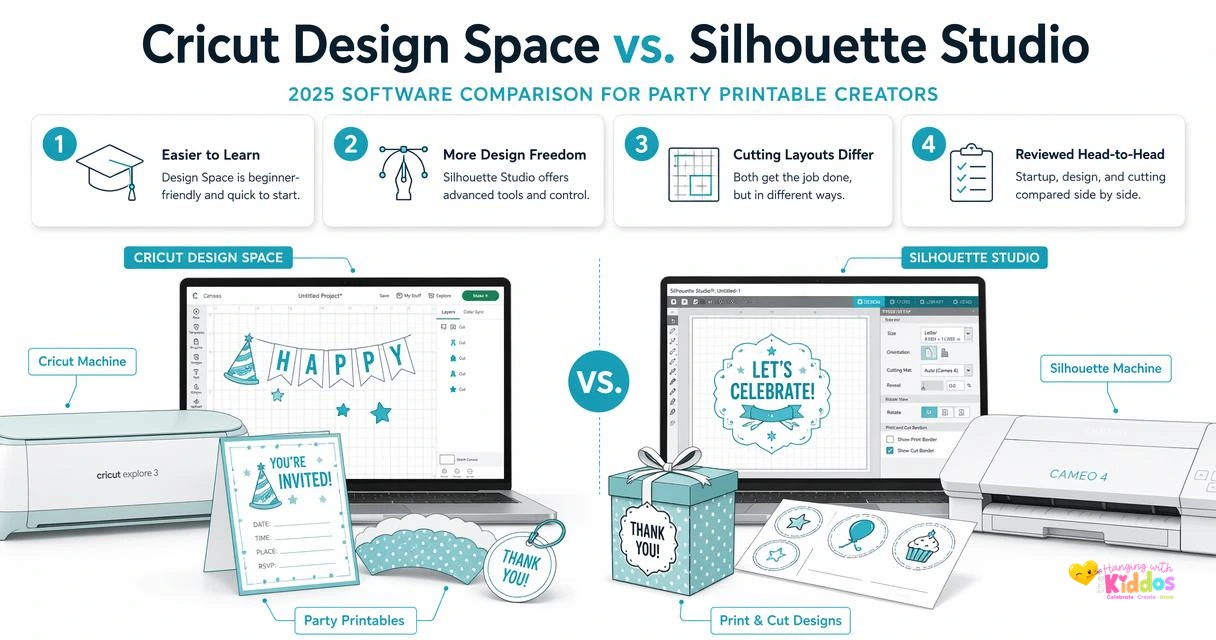
For busy moms, teachers, and last-minute party planners, Cricut's guided flow can be a relief. Upload your design, resize it, print, and cut. That is usually enough for cupcake toppers, favor tags, basic stickers, and labels.
Silhouette Studio feels more like design software. You can adjust shapes, page layouts, cut lines, and registration choices with more freedom. That can feel slower at first, but it pays off when you're building printable sheets for multiple favors.
Software pros and cons for printable parties
Cricut Design Space pros:
- Beginner-friendly upload process
- Clean steps for print-then-cut
- Good for Canva-made PNG and SVG files
- Strong choice for quick family projects
Cricut Design Space limits:
- Less flexible layout control
- Internet and account workflow can feel restrictive
- Not ideal for complex printable sheet planning
Silhouette Studio pros:
- Better design control inside the software
- Stronger layout tools for printable sheets
- Helpful for custom favor boxes and business batching
- More room to adjust cut lines and shapes
Silhouette Studio limits:
- Higher learning curve
- More settings to understand
- Beginners may need test cuts before party day
If you design in Canva, both machines can work. I like Canva for water bottle labels and wrappers because it's quick to personalize names, ages, themes, and colors. If that's your workflow, this DIY water bottle labels in Canva tutorial pairs especially well with a Cricut or Silhouette print-then-cut setup.
Helpful Cricut beginner video
This beginner project video is useful if you're trying to picture what a Cricut can do beyond vinyl. The same basic cut-and-assemble thinking applies to printable labels, favor tags, and classroom party pieces.
Which machine works best by project type?
The best machine depends on the party printable you make most often. Stickers, water bottle labels, favor boxes, cupcake toppers, cake toppers, and classroom crafts each stress the machine in a different way.
I always tell crafters to choose based on their real party list, not the prettiest machine photo. A parent making one birthday set has different needs than a seller producing ten themed favor kits a week.
Best machine by printable party project
| Project | Best pick | Practical reason |
|---|---|---|
| Cupcake toppers | Cricut | Simple circles and scallops are quick to upload and cut |
| Stickers | Tie | Both can cut sticker paper well after calibration |
| Waterproof labels | Tie | Paper choice and printer ink matter as much as the cutter |
| Favor boxes | Silhouette | Better control for tabs, score lines, and custom shapes |
| Chip bags | Neither required | Most chip bags are trimmed with a cutter or scissors, not machine-cut |
| Cake toppers | Cricut | Easy for layered cardstock shapes and names |
| Classroom crafts | Cricut | Faster for repeat shapes and teacher-friendly projects |
| Printable business kits | Silhouette | More control for sheet layouts and production batching |
For stickers, Party & Confetti® Waterproof Glossy Sticker Paper is the material I'd choose for Capri Sun labels, water bottle labels, and favor stickers that may be handled by little hands. For cake toppers, favor tags, and classroom decorations, Party & Confetti® Glossy Cardstock gives printables a firmer, party-ready feel.
If you need a no-stress classroom printable idea before investing in a cutter, try this free printable paint palette and brush set. It shows how much polish you can get from good paper, clean printing, and simple assembly.
How should you set up print-then-cut for better results?
A strong print-then-cut setup starts with the right file, the right paper, and a small test cut before you print the whole party batch. Even the better machine will waste supplies if the paper type, blade pressure, or registration marks are wrong.
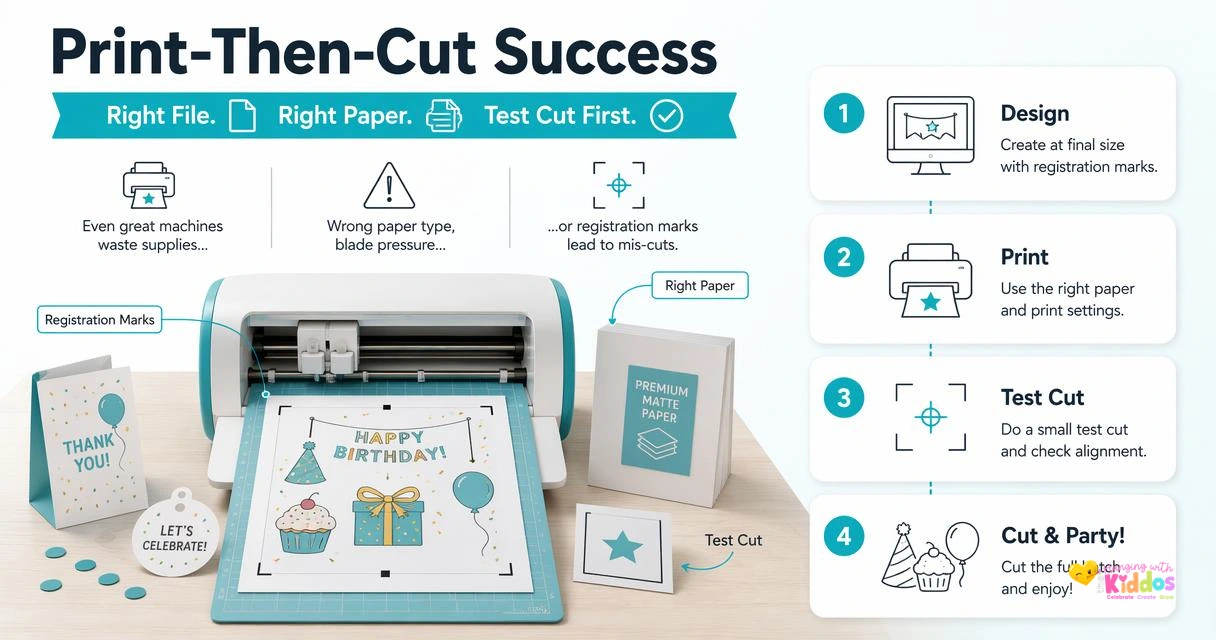
Follow this simple workflow before cutting party printables:
- Design at the final size. Resize before printing, especially for labels and wrappers.
- Use high-quality printable paper. Match glossy, sticker, or cardstock paper to the favor.
- Print one test sheet. Check color, size, and margins.
- Calibrate your machine. Do this before detailed stickers or labels.
- Run a small test cut. Test one corner or duplicate shape first.
- Batch only after approval. Print the full set once the test looks right.
Expert tip: If your printable looks dull, don't blame the cutter first. The printer settings and paper finish usually affect the final look more than the cutting machine.
Common issues are usually fixable. If cuts are slightly off, recalibrate and check lighting around the registration marks. If sticker edges tear, reduce pressure or try a fresh blade. If cardstock drags, use the right mat grip and keep detailed cuts away from weak paper edges.
For themed labels and kid-friendly party tables, the same planning applies across holidays. These St. Patrick's Day party ideas for kids are a good reminder that printables work best when colors, labels, and favors feel coordinated.
What should you expect from Cricut and Silhouette in 2026?
In 2026, the bigger shift is not just the machines, but the way party creators combine Canva, printable templates, home printers, and cutting software. More users are designing outside the cutter app, then importing finished artwork for print-then-cut.
That trend favors simple workflows. Parents want editable templates, quick personalization, and fewer ruined sheets. Small business owners want repeatable layouts, clean cuts, and materials that photograph well for listings.
For Cricut, expect beginners to keep valuing ease of use. For Silhouette, expect advanced printable sellers to keep choosing the extra control. Neither brand removes the need for good printable paper, careful sizing, and test cuts.
At Hangingwiththekiddos, we build around that full workflow: design, print, cut, and assemble. The Party & Confetti® Printable Paper Collection is made for the home crafter who wants favors to look bright, glossy, and sturdy without guessing which paper to use. You can find more printable party help on hangingwiththekiddos.com when you're ready to plan your next celebration.
FAQ about Cricut and Silhouette for party printables
Is Cricut or Silhouette better for stickers?
Both can make good stickers, but Cricut is easier for beginners and Silhouette gives more control over sticker sheet layout. For best results, use glossy sticker paper, calibrate print-then-cut, and test one sheet before printing a full party set.
Do I need a cutting machine for chip bags?
No, most printable chip bags do not need a Cricut or Silhouette. You can print on Party & Confetti® Glossy Chip Bag Paper, trim with a paper cutter, fold, and seal. A cutting machine helps more with tags, labels, toppers, stickers, and shaped decorations.
Which machine is better for selling party printables?
Silhouette is often better for sellers because Silhouette Studio gives more layout and cut-line control. Cricut can still work well if you sell simpler stickers, toppers, and labels. Your workflow matters more than the brand name.
Can I use Canva designs with both machines?
Yes, Canva designs can be used with both machines when exported in the right format, usually PNG or SVG depending on the project. Keep the design at final size, avoid tiny text near cut lines, and test print before cutting.
Conclusion
For Cricut vs Silhouette for party printables, pick Cricut if you want the friendliest path for birthday labels, toppers, stickers, and classroom projects. Pick Silhouette if you want deeper software control for favor boxes, custom sheets, and printable products you may sell.
My practical next step: list your next three party projects, then choose the machine that fits those projects instead of chasing every feature. If polished print quality is your goal, pair either cutter with Party & Confetti® Glossy Cardstock, Glossy Chip Bag Paper, or Waterproof Glossy Sticker Paper. Visit hangingwiththekiddos.com, choose the printable paper that matches your favor, and run one test sheet before party week.